How to Save WhatsApp Events to Your Calendar
Someone drops event details in a WhatsApp group. Instead of typing everything into your calendar manually, screenshot it and let AI do the rest. Five steps, under a minute.
Screenshot the Event in WhatsApp
Open your WhatsApp group chat and find the message with the event details. It could be a plain text message with a date and location, a forwarded invite, or even a flyer image someone shared. Take a screenshot on your iPhone by pressing the side button and volume up at the same time.
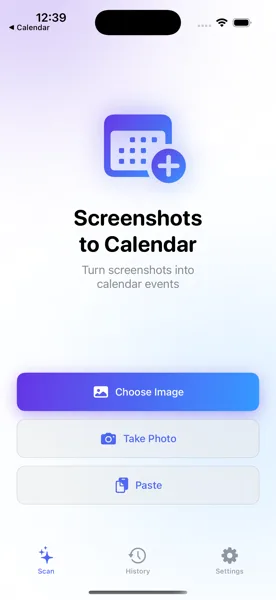
Open Screenshots to Calendar
You have two options: open the app directly and select the screenshot from your photo library, or use the iOS Share Extension. The Share Extension is the fastest way -- tap the share button in WhatsApp, scroll to find "Screenshots to Calendar", and the image is sent directly without leaving the chat.
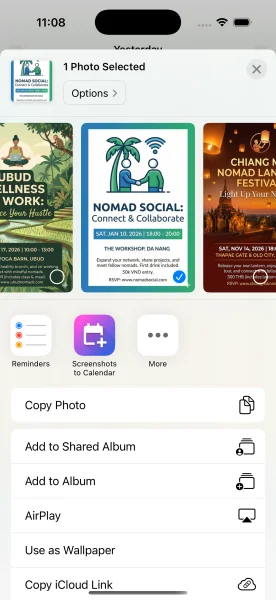
AI Extracts the Details
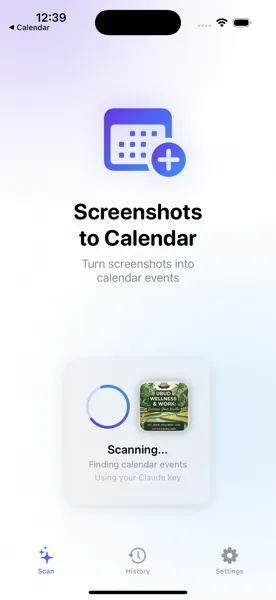
Once the screenshot reaches the app, AI reads everything in the image and extracts the event title, date, time, and location. It understands natural language like "next Friday at 7pm" and handles events written in any language. The entire extraction takes just a few seconds.
Review and Edit
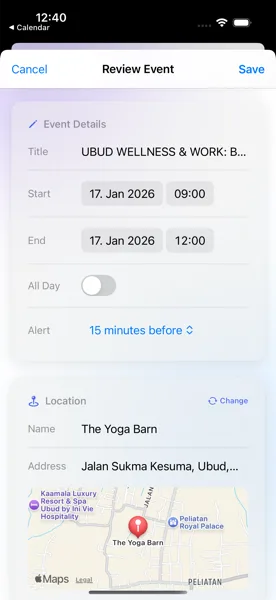
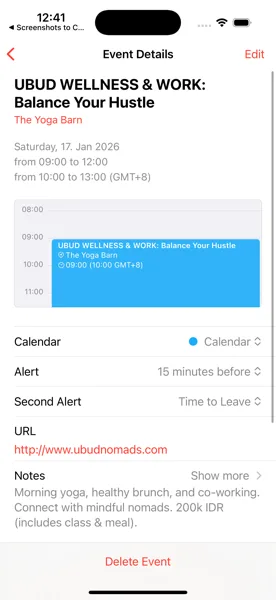
Before anything is saved, you see a full preview of the extracted event. Check the title, date, time, and location. Need to adjust the end time or add a note? Edit any field directly. Nothing goes to your calendar without your confirmation.
Saved to Your Calendar
Tap save and the event is added to your iOS Calendar. It automatically syncs with iCloud, so the event shows up on your Mac, iPad, and Apple Watch. If you use Google Calendar or Outlook through iOS Calendar sync, it appears there too.
Tips for Best Results
- Works with group chat messages, forwarded invites, and screenshots from other chat apps like Telegram, Signal, and iMessage too
- The app understands events in any language -- perfect for international group chats where messages mix English, Spanish, Vietnamese, or anything else
- Use the Share Extension to skip opening the app separately -- share directly from WhatsApp and the event is extracted instantly
Stop Typing Events Manually
Download Screenshots to Calendar and turn any WhatsApp message into a calendar event in seconds.
Download on App Store