How to Turn a Screenshot into a Calendar Event
See event details on your screen? Screenshot it. The AI reads the image, extracts every detail, and creates a calendar event in seconds. Four steps, any image source.
Take a Screenshot
Find the event details on your iPhone -- it could be a flyer someone shared, a message in a chat, a poster you photographed, or an email with a booking confirmation. Take a screenshot by pressing the side button and volume up at the same time. Or, if you already have the image saved, skip to the next step.
Open the App or Use the Share Extension
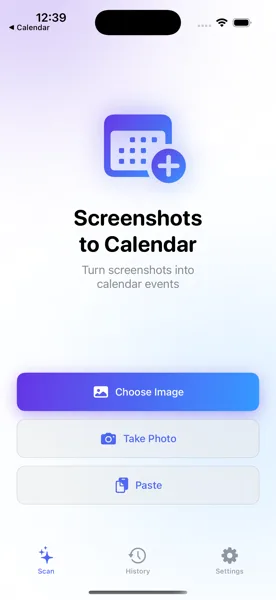
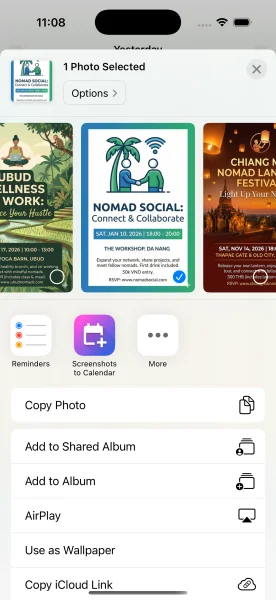
You have two ways to get the image into the app. Open Screenshots to Calendar and select the image from your photo library or clipboard. Or, even faster: use the iOS Share Extension. Tap the share button in any app, choose "Screenshots to Calendar," and the image is sent directly without switching apps.
AI Extracts the Event Details
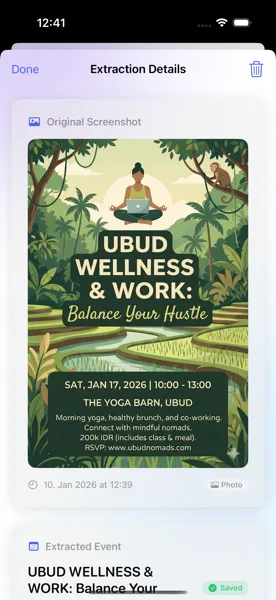
The AI scans your screenshot and identifies the event title, date, time, location, and any other details. It understands natural language formats, abbreviations, and works in any language. If the image contains multiple events, all of them are extracted at once. The process takes just a few seconds.
Review and Save to Calendar
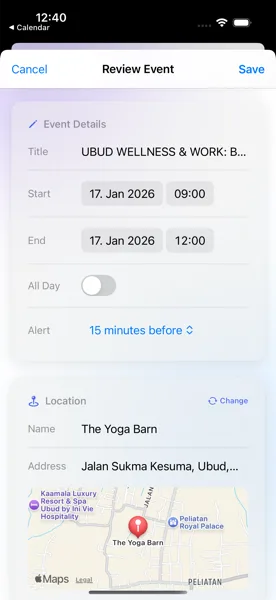
Before anything is saved, you see the full event preview. Verify the title, date, start and end times, and location. Adjust any field if needed -- add notes, change the calendar, or modify the time. Tap save and the event goes straight to your iOS Calendar, syncing across all your Apple devices via iCloud.
Tips for Best Results
- Works with any image -- photos, screenshots, clipboard content, and images shared from other apps
- Multiple events in one image? All extracted automatically -- conference schedules, event listings, and multi-day agendas are fully supported
- Unlimited extractions with a Pro subscription — managed through your Apple ID
Never Type an Event Manually Again
Download Screenshots to Calendar and turn any image into a calendar event in seconds.
Download on App Store