How to Turn a Poster into a Calendar Event
Walking past a concert poster, a community event flyer, or a workshop sign? Snap a photo with your iPhone and the AI turns it into a calendar event before you reach the next block.
Snap a Photo of the Poster
Use your iPhone camera to take a quick photo of the event poster, flyer, or sign. It does not need to be perfectly framed or well-lit. The AI handles tilted angles, partial shadows, and busy backgrounds. Even a photo taken from across the street while walking works as long as the text is readable to you.
Open the App and Select the Photo
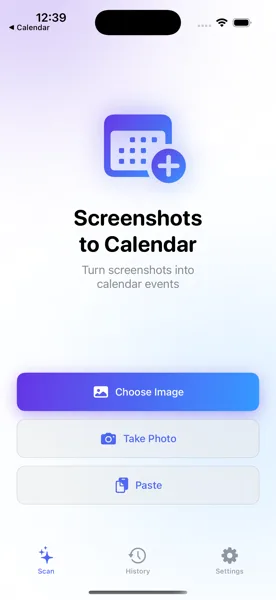
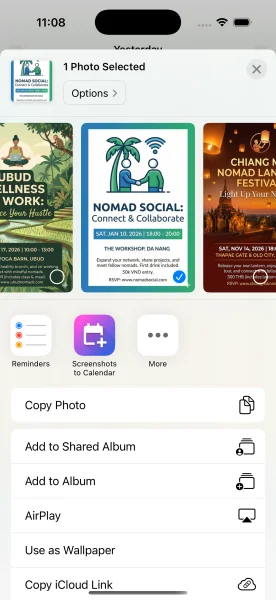
Open Screenshots to Calendar and pick the poster photo from your library. Alternatively, right after taking the photo, tap the share button in the Camera app and select "Screenshots to Calendar" from the Share Extension. The image is sent to the app instantly, no app switching needed.
AI Reads the Poster Details
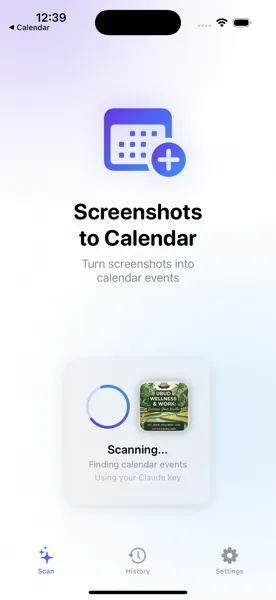
The AI analyzes the poster image and extracts the event name, date, time, venue name, and address. It understands creative layouts with stylized typography, colored backgrounds, and decorative elements that are common in event posters. If the poster is in another language, the AI translates the details for you.
Review and Save to Calendar
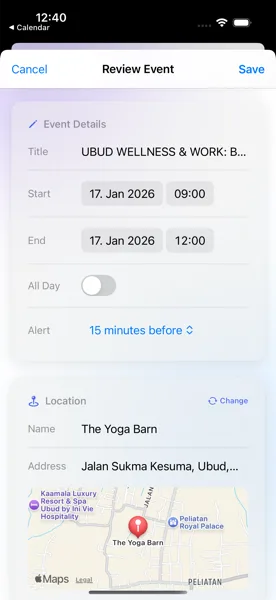
Check the extracted event details on the review screen. The title, date, time, and location are pre-filled. If the poster included a venue name, the app enriches it with a full address and GPS coordinates. Make any adjustments, then tap save. The event syncs to your iOS Calendar and across all your Apple devices.
Tips for Best Results
- Works in any language -- snap posters abroad without needing to translate yourself. The AI reads Chinese, Arabic, Thai, Vietnamese, and dozens more
- Blurry or angled photos? The AI handles imperfect images -- as long as the text is legible to you, it will work
- Location names on the poster are enriched with full addresses and GPS coordinates for easy navigation to the venue
Never Walk Past an Event Again
Download Screenshots to Calendar and save every poster you see to your calendar in seconds.
Download on App Store